Materials & palettes
Filament library and color comparison
Open: CM Tools → Materials → Filament library
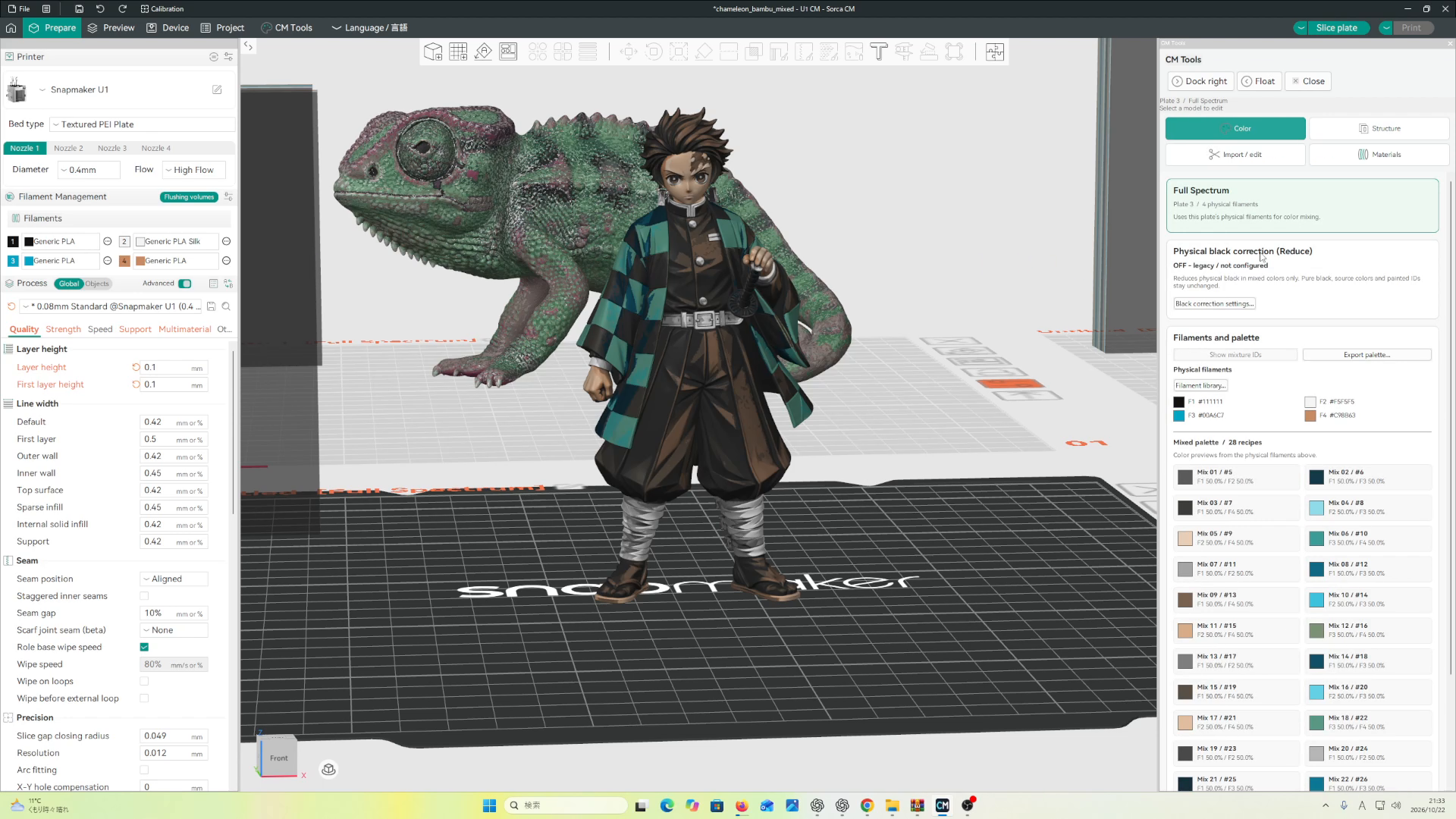
- Search by product, color or HEX → select a row.
- Check its HEX, TD and color difference. Selecting alone does not change the model.
- To use it, click Use for F… for the intended physical slot.
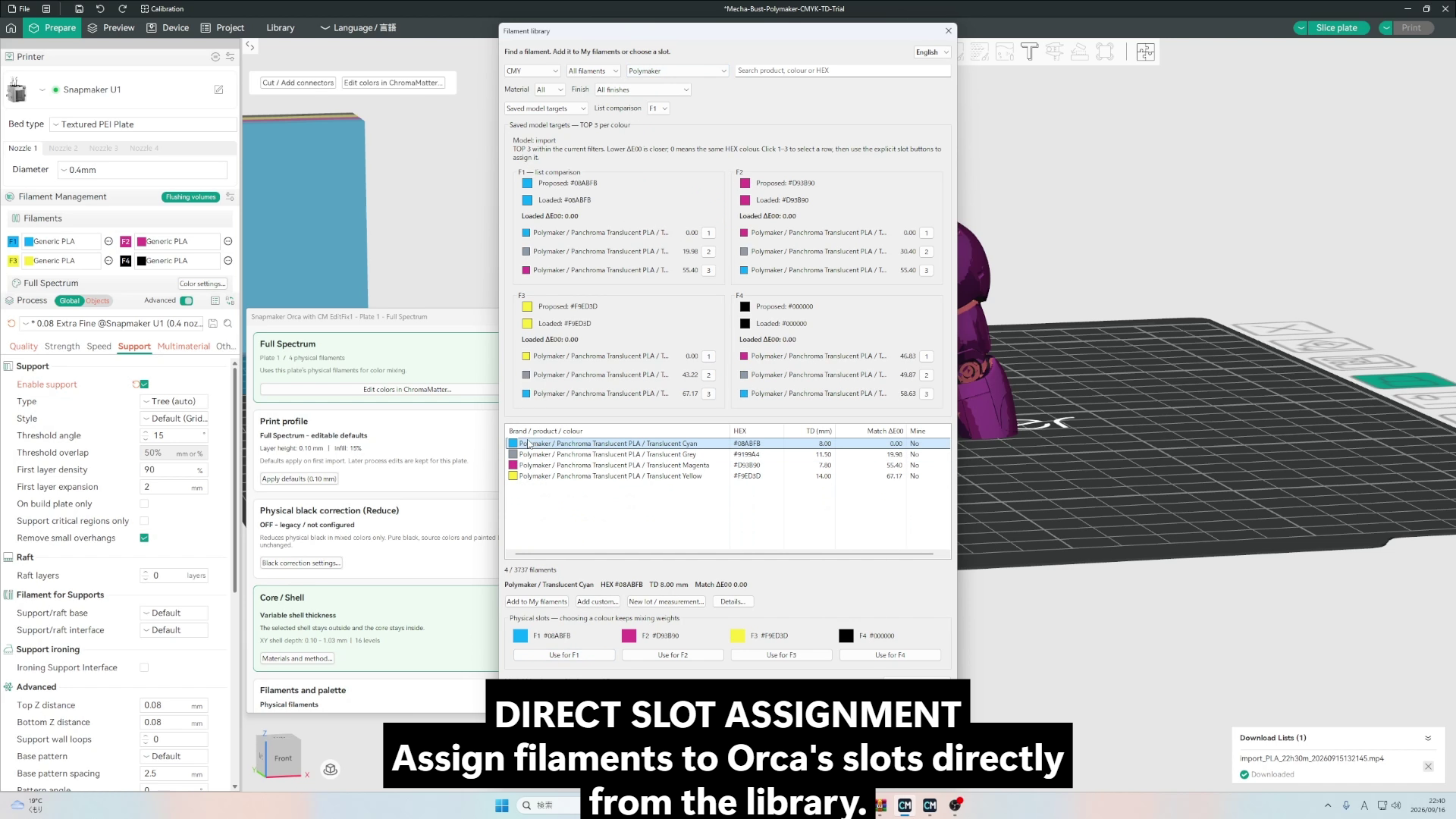
Find and compare close materials
- Choose Saved model targets → an F slot → Expand to show TOP 3.
- Select a candidate → Use for F… to assign it.
- Refresh Model Match estimates the whole-model match. Unavailable scores remain No data.
For another target, choose Manual HEX (optional) → enter #RRGGBB. Smaller differences mean a closer color. Comparing does not recolor the model.
Register your own material or a new lot
- New product: Add custom...
- Another lot of an existing product: select its row → New lot / measurement.... The original record stays unchanged.
When the form opens, enter Brand, Product, Colour name and HEX → Save. Open Optional: TD, source and batch... for TD or a lot number; leave unknown TD blank. Cancel saves nothing.
Save changes inventory only. Use Use for F… separately to assign it. Closing the library does not undo saved records.
The current capture did not open this form, so registration was not demonstrated. The entry buttons are shown above; no new inventory record was created.
Export a printable color chart
- With exactly four physical filaments, finish editing → Color → Export palette….
- Read the explanation → OK → choose a destination folder.
- Open the 3MF and PNG in the new CM-Palette folder.
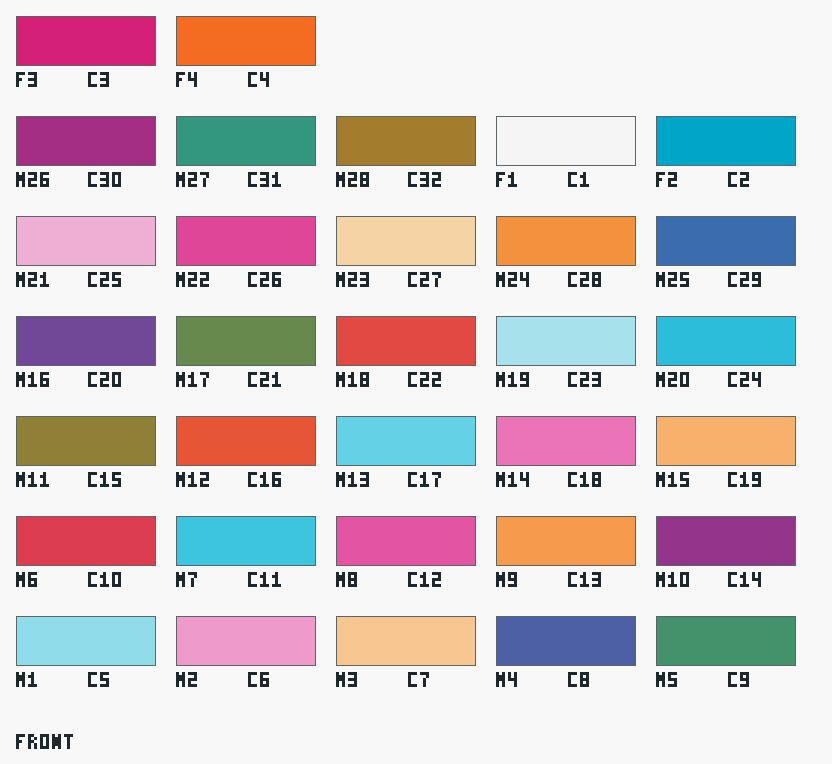
The chart excludes model-specific shells and hollowing. It has not been sliced or printed in this check.
Add a mixture
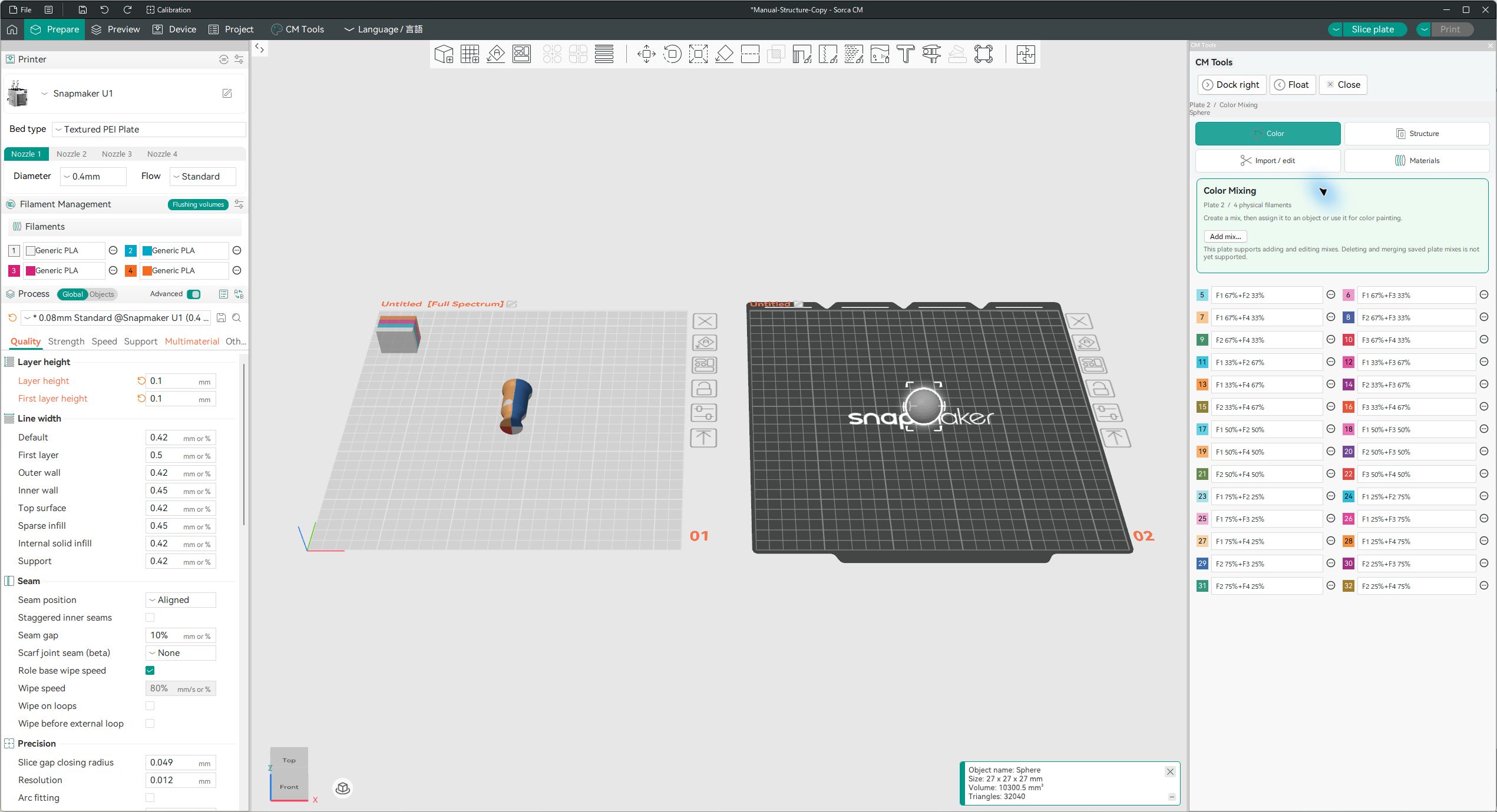
- On an ordinary STL/primitive plate with at least two filaments, open Color in CM Tools.
- Click Add mix… and choose two or more loaded filaments.
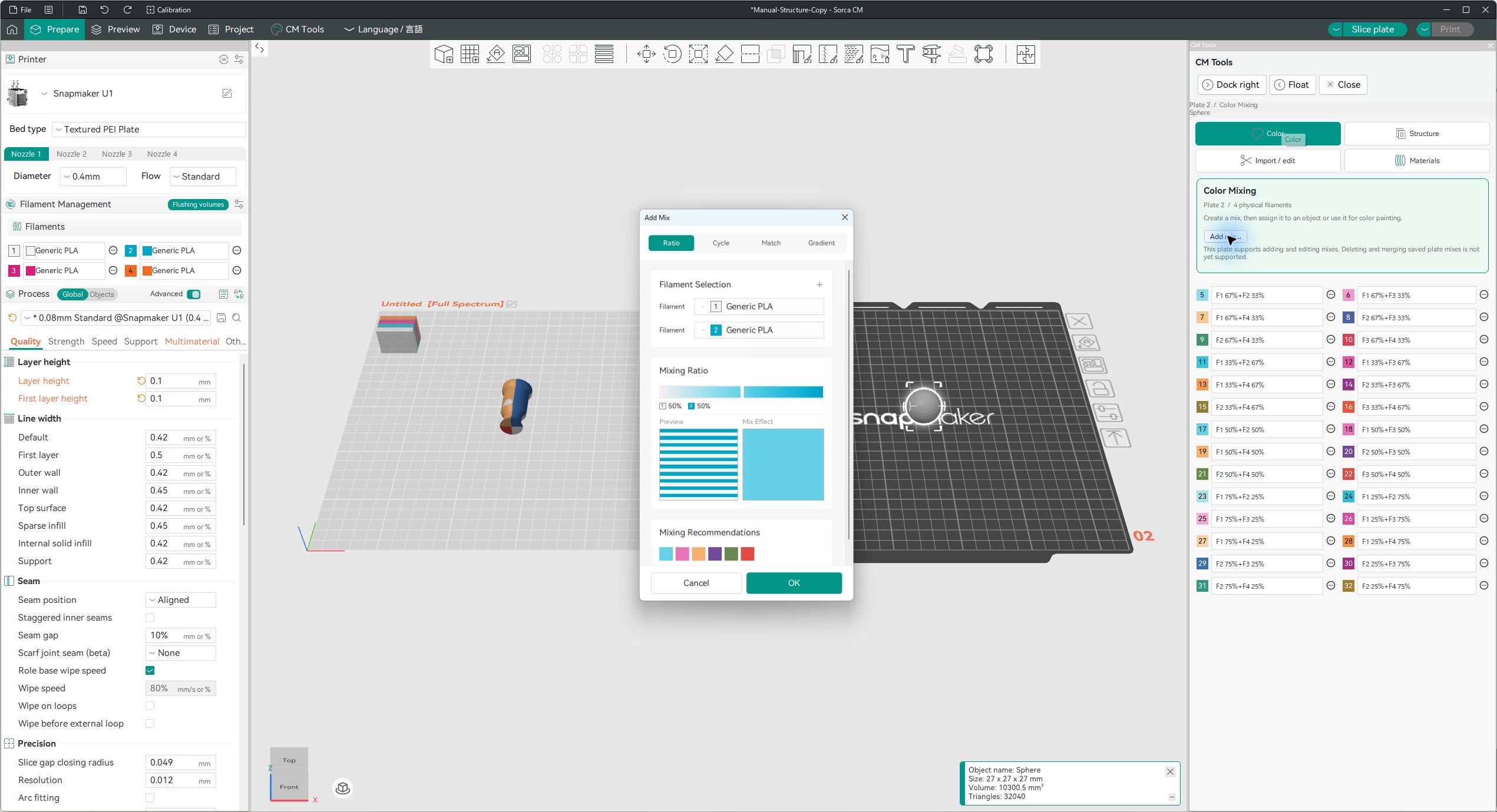
- In Ratio mode, adjust the shares and compare the stripe preview with the estimated mix effect.
- Click OK to add it, or Cancel to stop. Select the resulting palette entry when painting.
Imported managed palettes do not show this button. Deleting or merging saved plate mixtures may be unsupported.
Choose among the four mixture modes
Ratio: choose the shares
Select materials → adjust the bar for two colors, or the triangle for three → compare Preview with Mix Effect → OK. Use + to add a third material or − to remove the last one.
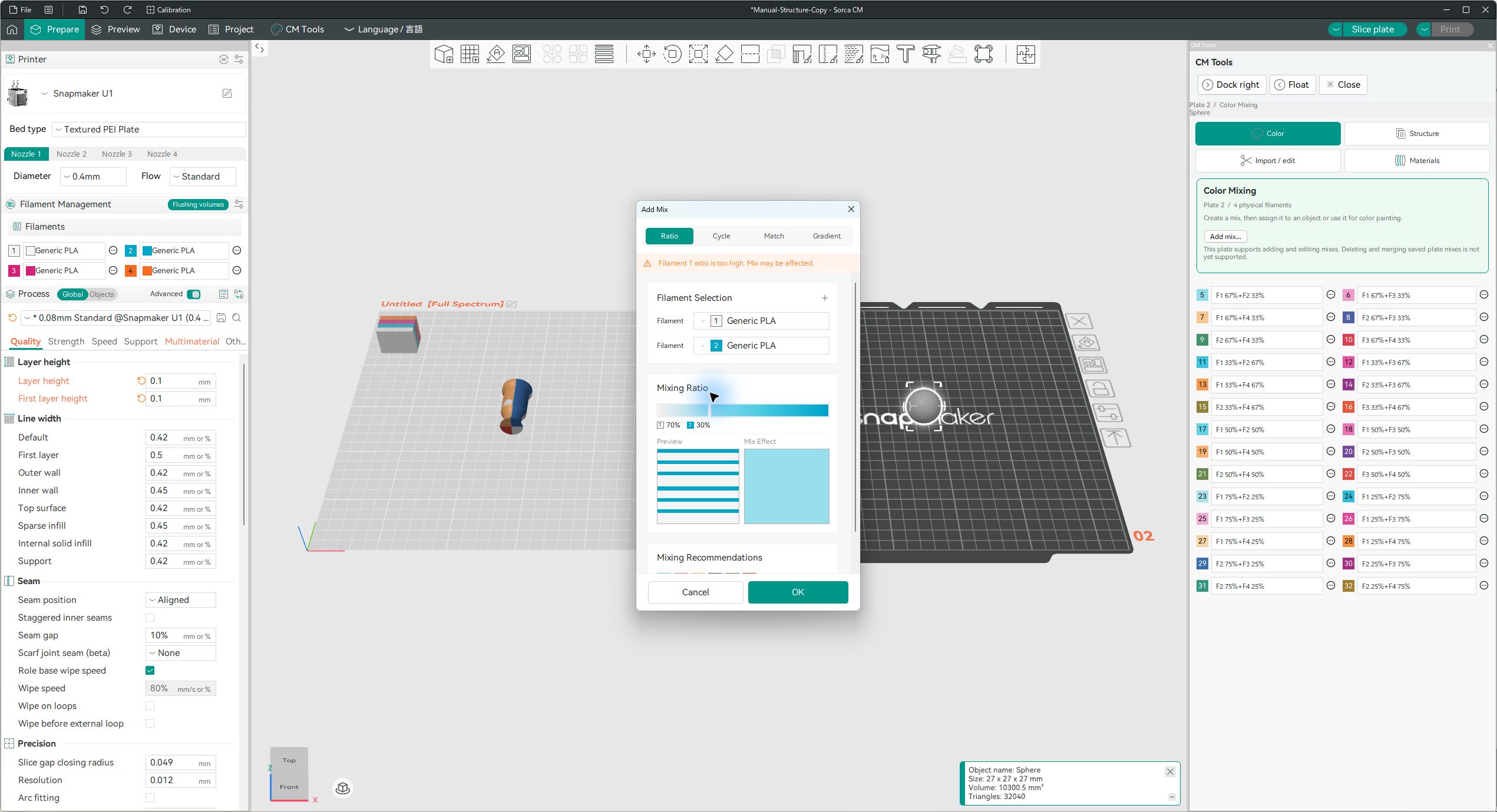
The 70% setting shows a ratio warning. This demonstrates the control, not a calibrated printing recipe.
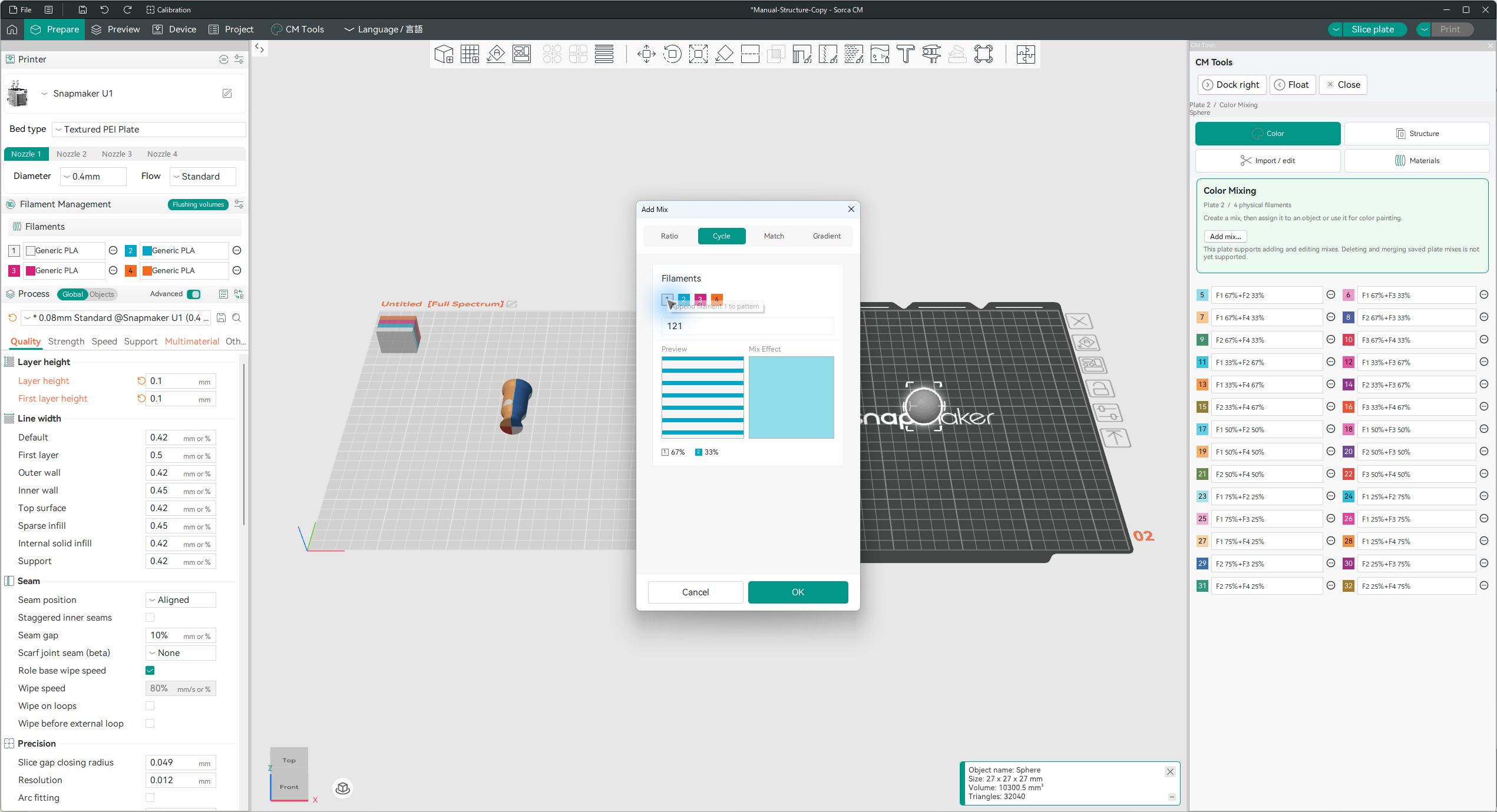
Cycle: enter the material order
Click material-number buttons in order → inspect the sequence and stripe → OK. 121 uses F1 twice and F2 once. Delete unwanted numbers in the input field.
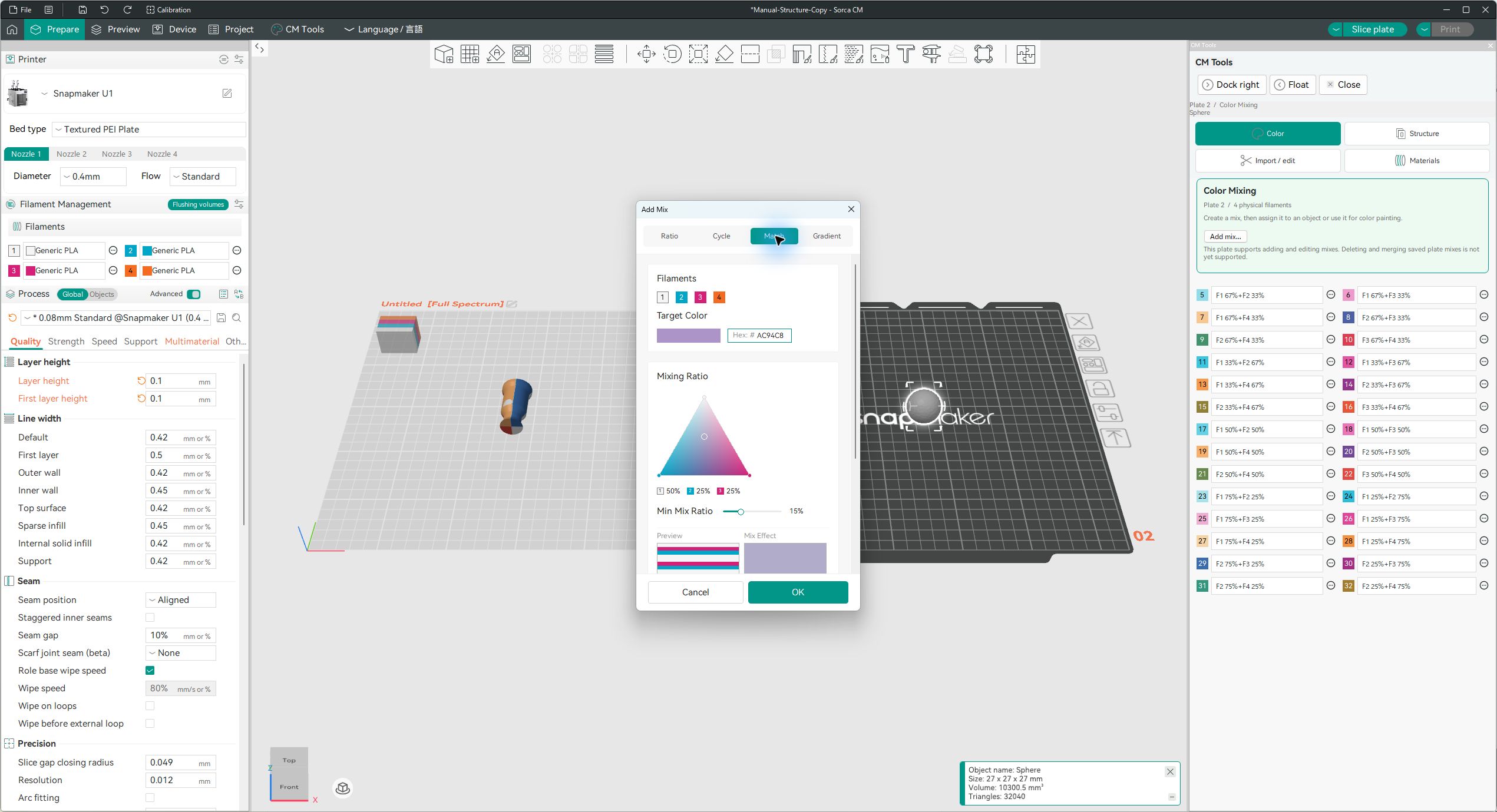
Match: approach a target color
Click the Target Color swatch, or enter six Hex digits and press Enter → select a candidate → adjust Min Mix Ratio if needed → OK. This is a screen-color estimate, not a print guarantee.
Gradient: vary with height
Select materials → check the vertical color preview → use the Swap filaments arrow to reverse the order → OK. This varies the recipe along Z; it is not the CMY brush's wall-thickness gradient.
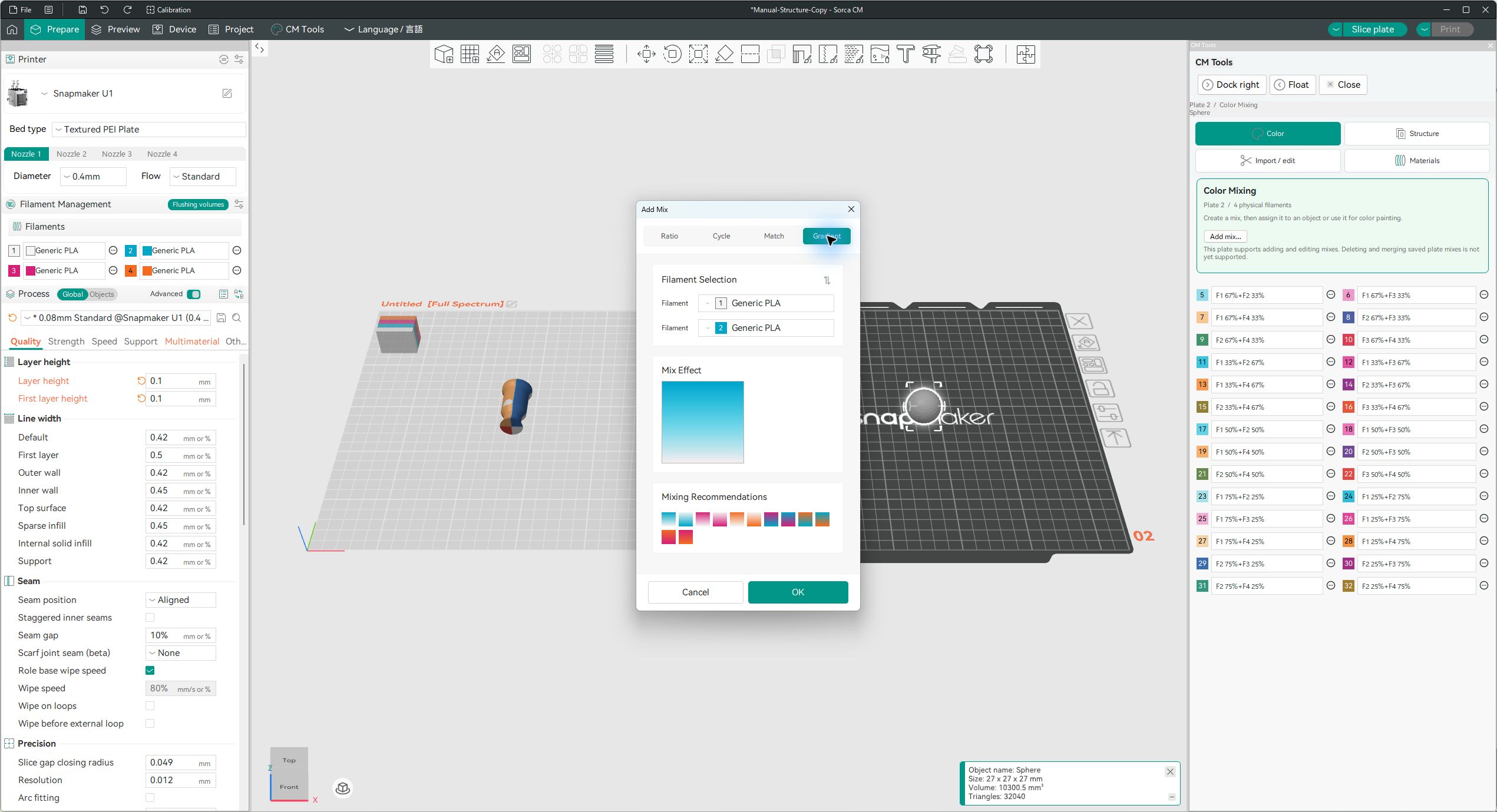
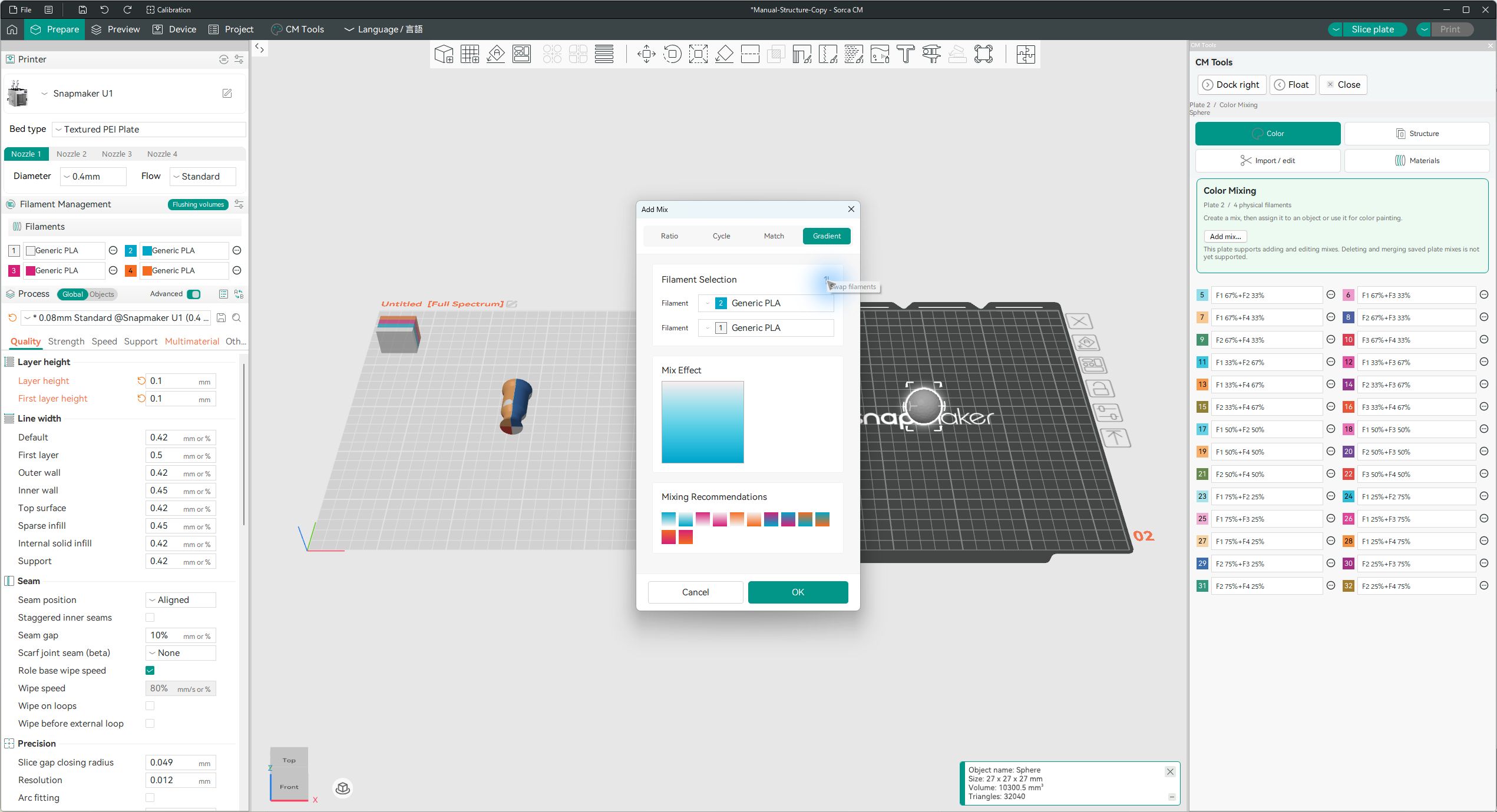
This gradient was previewed, not saved. Cancel discards an unconfirmed edit. Read any warning before confirming; these UI examples are not print calibration.
Confirm the recipe you actually want
Before OK, check the F labels. This example uses F2 cyan 70% + F1 white 30%.
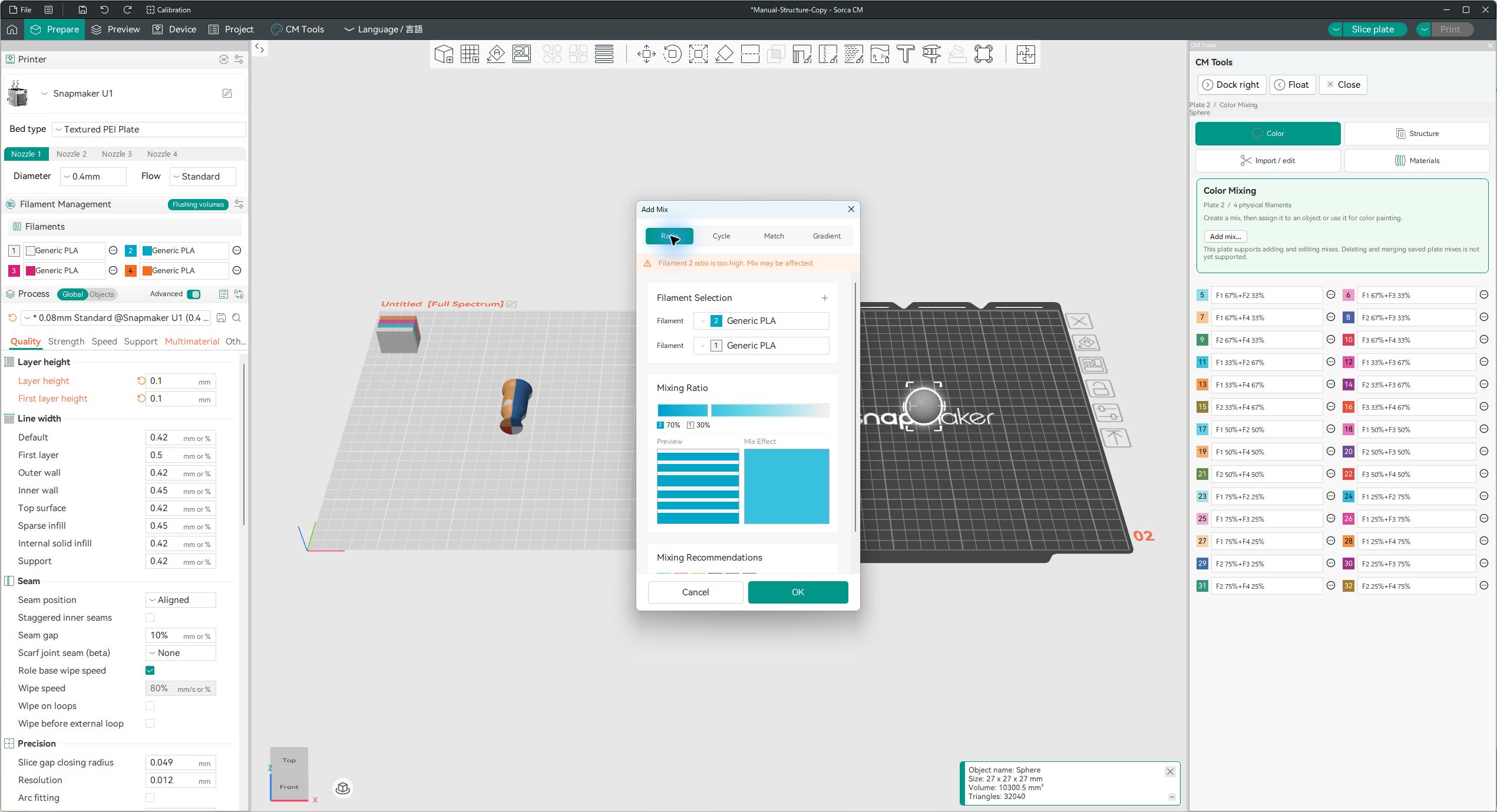
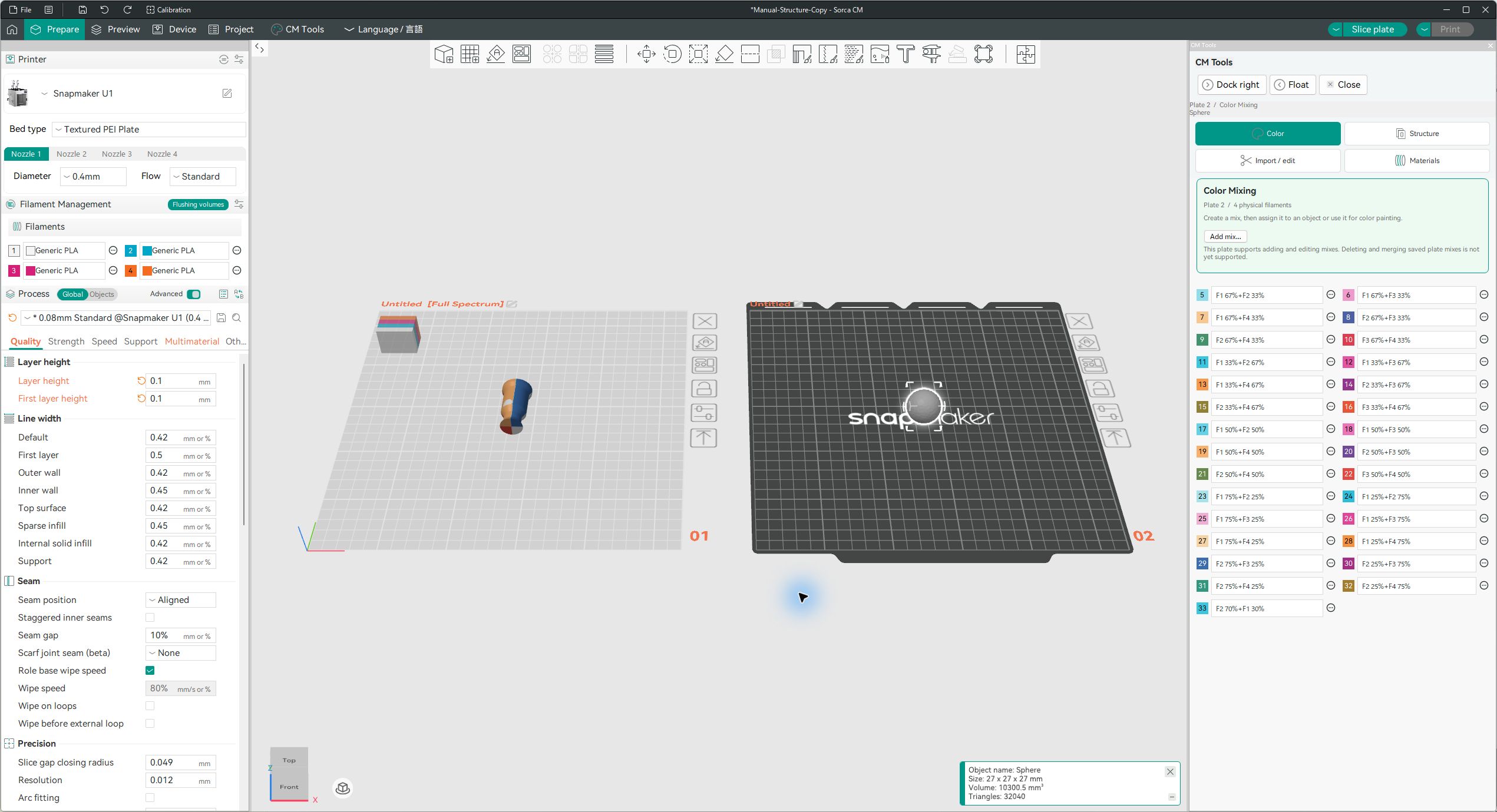
Reduce real black in mixtures
- Open Color → Black correction settings....
- Under Physical black material, select the actual black spool's F slot.
- Turn Enable physical black correction (Reduce) on → OK → reslice.
Reduces black in mixtures; pure black stays pure. Preparation colors and painted IDs do not change. To disable it, clear the same checkbox → OK.
No black spool? Leave it OFF. This neither creates virtual black nor removes a red cast. Supported fixed Cycle recipes are required. It was not applied to the CMYW demonstration.
Details and checks
- Unknown TD is not a zero or a measurement. HEX is the software color; TD describes transmission information, not guaranteed printed color.
- Single-color ΔE00 and whole-model mean ΔE76 are different metrics. Sheen, thickness and lighting need separate checks.
- Add to My filaments registers inventory; Use for F… assigns a slot. Record a new lot separately. The edited demonstration reported a saved-palette/geometry mismatch, so whole-model coverage was unavailable.
- Reduce OFF cannot undo correction already baked into the source. Unsupported gradients or cycle types reject ON.
Palette output
The export includes a 3MF, PNG legend, mapping CSV and settings JSON. F is physical filament, M is mixture, C is paint channel—not cyan. The 32-sample example was saved and reopened; the original model was unchanged. Model-specific shells and hollowing are not reproduced in the chart.